 Form Copilot
Installation guide
Set up Form Copilot.
Load the source in Chrome, Edge, or Brave, then connect the model you want to use.
Load the extension.
- Download and extract the source ZIP.
- Open
chrome://extensionsin Chrome,edge://extensionsin Edge, orbrave://extensionsin Brave. - Turn on Developer mode, choose Load unpacked, and select the folder that directly contains
manifest.json. - Pin Form Copilot in the toolbar. The setup page opens on first install.
Connect a provider.
In setup, select Gemini, OpenAI, OpenRouter, or Local. Enter your API key where required and choose a model. Click Test connection before continuing.
For Gemini, create your key in Google AI Studio and paste it into the extension’s Gemini preset. If the selected model is unavailable, use Fetch to see the models your key can access.
Add the facts or preferences the model should use. Then choose a tone and decide whether to enable image reading. Images require a vision-capable model.
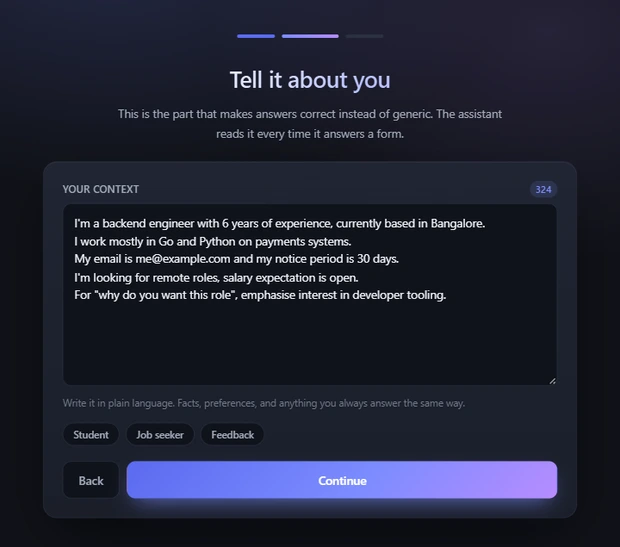
Settings stay in your browser. During drafting, the extension sends your context and form contents to the endpoint you selected. Check its data policy before using sensitive information.
Fill your first form.
- Open the respondent view of a Google Form, then open Form Copilot from the toolbar or the on-page button.
- Choose Generate answers. Review each draft and use Edit where needed.
- Choose Fill form. Review the result, handle any flagged uploads yourself, and submit through Google Forms.
Troubleshooting.
The browser can’t find manifest.json
Select the extracted folder that directly contains manifest.json.
The provider connection fails
Check the API key, base URL, and model. Use Fetch in setup to check whether that model is available.
The extension says to open a form or reload
Open the respondent view. If the tab was already open when you installed or updated the extension, reload the form.